
 Nicolas Verlhiac
334245f918
Nicolas Verlhiac
334245f918
|
5 years ago | |
|---|---|---|
| .github/workflows | 5 years ago | |
| assets | 5 years ago | |
| docs | 5 years ago | |
| src | 5 years ago | |
| .gitignore | 5 years ago | |
| Dockerfile | 5 years ago | |
| LICENSE.md | 5 years ago | |
| README.md | 5 years ago | |
| docker-compose.dev.yml | 5 years ago | |
| docker-compose.yml | 5 years ago | |
| package-lock.json | 5 years ago | |
| package.json | 5 years ago | |
README.md
WireGuard Easy





You have found the easiest way to install & manage WireGuard on any Linux host!
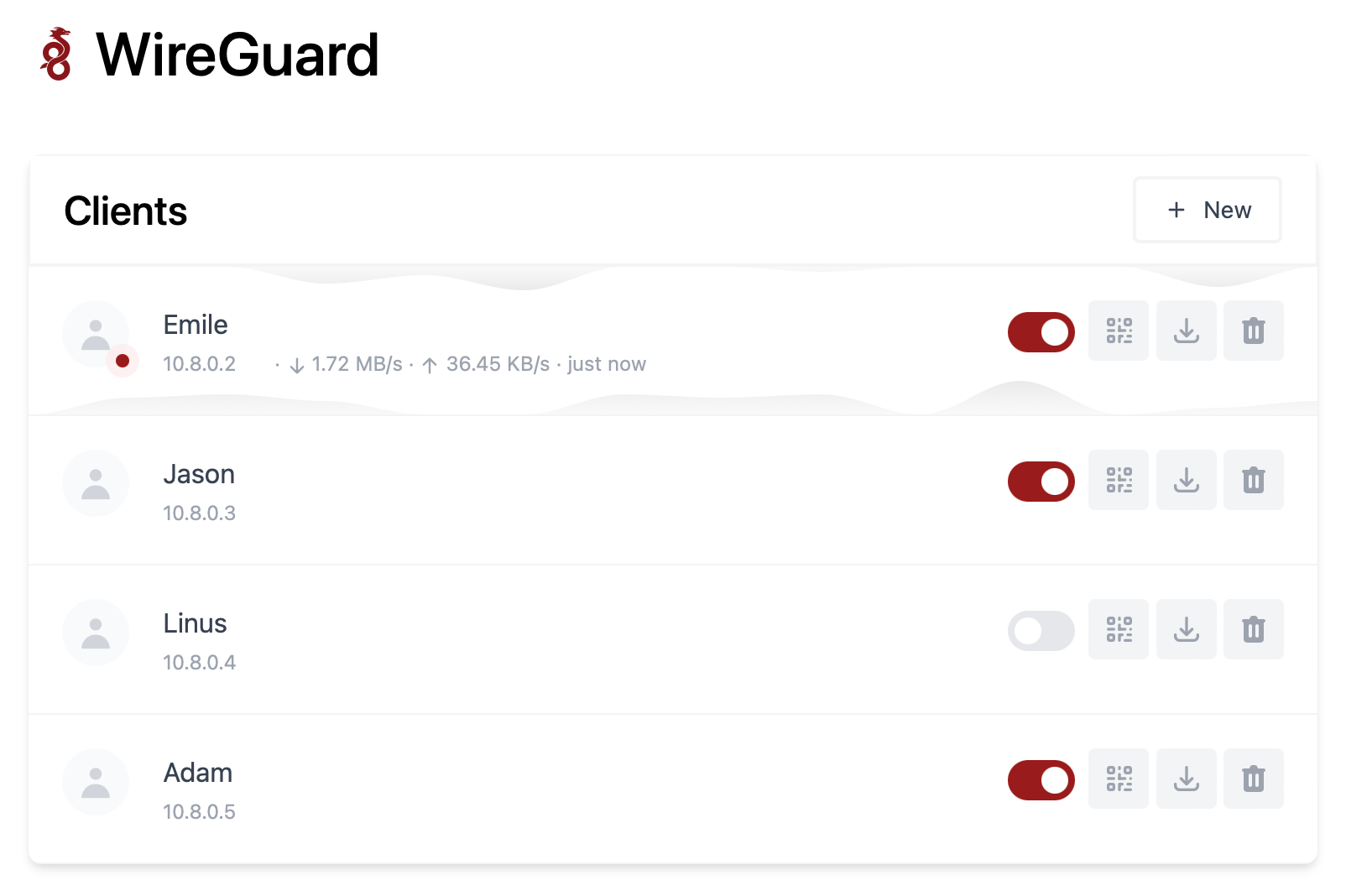
Features
- All-in-one: WireGuard + Web UI.
- Easy installation, simple to use.
- List, create, edit, delete, enable & disable clients.
- Show a client's QR code.
- Download a client's configuration file.
- Statistics for which clients are connected.
- Tx/Rx charts for each connected client.
- Gravatar support.
Requirements
- A host with a kernel that supports WireGuard (all modern kernels).
- A host with Docker installed.
Installation
1. Install Docker
You can follow this instruction, but don't forget to take a look to the Docker documentation.
1. Install Docker
a. Install using the convenience script (🏗 for test & development )
Docker provides a convenience script at get.docker.com to install Docker into development environments quickly and non-interactively. The convenience script is not recommended for production environments:
$ curl -sSL https://get.docker.com | sh
$ sudo usermod -aG docker $(whoami)
$ exit
And log in again.
OR
b. Install using the repository (✅ production ready)
1. Need to set up the repository ?
If you have trouble installing Docker Engine, you need to set up the Docker repositor.
-
Update the
aptpackage index and install packages to allowaptto use a repository over HTTPS:$ sudo apt-get update $ sudo apt-get install \ ca-certificates \ curl \ gnupg \ lsb-release -
Add Docker's official GPG key:
$ curl -fsSL {{ download-url-base }}/gpg | sudo gpg --dearmor -o /usr/share/keyrings/docker-archive-keyring.gpg -
Use the following command to set up the stable repository. To add the nightly or test repository, add the word
nightlyortest(or both) after the wordstablein the commands below. Learn about nightly and test channels.$ echo \ "deb [arch=$(dpkg --print-architecture) signed-by=/usr/share/keyrings/docker-archive-keyring.gpg] {{ download-url-base }} \ $(lsb_release -cs) stable" | sudo tee /etc/apt/sources.list.d/docker.list > /dev/null
Afterward, you can install and update Docker from the repository .
2. Install Docker Engine
Update the apt package index, and install the latest version of Docker Engine and containerd, or go to the next step to install a specific version:
$ sudo apt-get update
$ sudo apt-get install docker-ce docker-ce-cli containerd.io
2. Run WireGuard Easy
To automatically install & run wg-easy, simply run:
$ docker run -d \
  --name=wg-easy \
  -e WG_HOST=🚨YOUR_SERVER_IP \
  -e PASSWORD=🚨YOUR_ADMIN_PASSWORD \
  -v ~/.wg-easy:/etc/wireguard \
  -p 51820:51820/udp \
  -p 51821:51821/tcp \
  --cap-add=NET_ADMIN \
  --cap-add=SYS_MODULE \
  --sysctl="net.ipv4.conf.all.src_valid_mark=1" \
  --sysctl="net.ipv4.ip_forward=1" \
  --restart unless-stopped \
  weejewel/wg-easy
💡 Replace
YOUR_SERVER_IPwith your WAN IP, or a Dynamic DNS hostname.💡 Replace
YOUR_ADMIN_PASSWORDwith a password to log in on the Web UI.
The Web UI will now be available on http://0.0.0.0:51821.
💡 Your configuration files will be saved in
~/.wg-easy
3. Sponsor
Are you enjoying this project? Buy me a beer! 🍻
Options
These options can be configured by setting environment variables using -e KEY="VALUE" in the docker run command.
| Env | Default | Example | Description |
|---|---|---|---|
PASSWORD |
- | foobar123 |
When set, requires a password when logging in to the Web UI. |
WG_HOST |
- | vpn.myserver.com |
The public hostname of your VPN server. |
WG_PORT |
51820 |
12345 |
The public UDP port of your VPN server. WireGuard will always listen on 51820 inside the Docker container. |
WG_PERSISTENT_KEEPALIVE |
0 |
25 |
Value in seconds to keep the "connection" open. |
WG_DEFAULT_ADDRESS |
10.8.0.x |
10.6.0.x |
Clients IP address range. |
WG_DEFAULT_DNS |
1.1.1.1 |
8.8.8.8, 8.8.4.4 |
DNS server clients will use. |
WG_ALLOWED_IPS |
0.0.0.0/0, ::/0 |
192.168.15.0/24, 10.0.1.0/24 |
Allowed IPs clients will use. |
If you change
WG_PORT, make sure to also change the exposed port.
Updating
To update to the latest version, simply run:
docker stop wg-easy
docker rm wg-easy
docker pull weejewel/wg-easy
And then run the docker run -d \ ... command above again.