
mirror of https://github.com/wg-easy/wg-easy
You can not select more than 25 topics
Topics must start with a letter or number, can include dashes ('-') and can be up to 35 characters long.
 Viktor Yudov
13f9302040
Viktor Yudov
13f9302040
|
3 years ago | |
|---|---|---|
| .github | 3 years ago | |
| assets | 3 years ago | |
| docs | 3 years ago | |
| src | 3 years ago | |
| .env | 3 years ago | |
| .gitignore | 3 years ago | |
| Dockerfile | 3 years ago | |
| LICENSE | 3 years ago | |
| README.md | 3 years ago | |
| contributing.md | 3 years ago | |
| docker-compose.dev.yml | 3 years ago | |
| docker-compose.yml | 3 years ago | |
| package-lock.json | 3 years ago | |
| package.json | 3 years ago | |
README.md
AmnewziaWG Easy
You have found the easiest way to install & manage AmneziaWG on any Linux host!
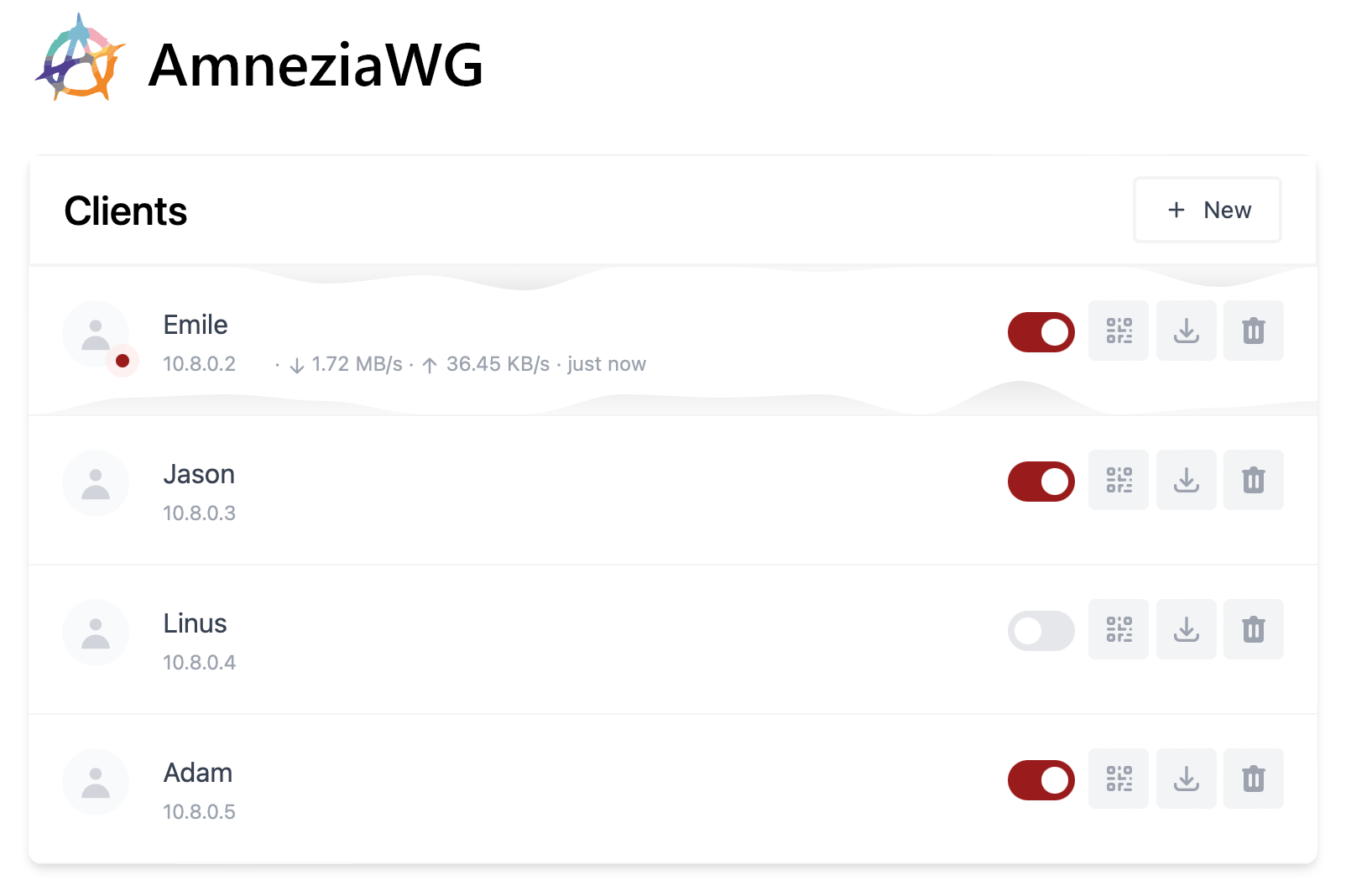
Features
- All-in-one: AmneziaWG + Web UI.
- Easy installation, simple to use.
- List, create, edit, delete, enable & disable clients.
- Download a client's configuration file.
- Statistics for which clients are connected.
- Tx/Rx charts for each connected client.
- Gravatar support.
- Automatic Light / Dark Mode
Requirements
- A host with Docker installed.
Installation
1. Install Docker
If you haven't installed Docker yet, install it by running:
$ curl -sSL https://get.docker.com | sh
$ sudo usermod -aG docker $(whoami)
$ exit
And log in again.
2. Set environment variables
In .env set the following environment variables:
- Replace
YOUR_SERVER_IPwith your WAN IP, or a Dynamic DNS hostname. - Replace
YOUR_ADMIN_PASSWORDwith a password to log in on the Web UI.
3. Build & run the Docker image
$ docker-compose up -d
The Web UI will now be available on http://0.0.0.0:51821.
💡 Your configuration files will be saved in
~/.amnezia-wg-easy
Options
These options can be configured by setting environment variables using -e KEY="VALUE" in the docker run command.
| Env | Default | Example | Description |
|---|---|---|---|
PORT |
51821 |
6789 |
TCP port for Web UI. |
WEBUI_HOST |
0.0.0.0 |
localhost |
IP address web UI binds to. |
PASSWORD |
- | foobar123 |
When set, requires a password when logging in to the Web UI. |
WG_HOST |
- | vpn.myserver.com |
The public hostname of your VPN server. |
WG_DEVICE |
eth0 |
ens6f0 |
Ethernet device the wireguard traffic should be forwarded through. |
WG_PORT |
51820 |
12345 |
The public UDP port of your VPN server. WireGuard will always listen on 51820 inside the Docker container. |
WG_MTU |
null |
1420 |
The MTU the clients will use. Server uses default WG MTU. |
WG_PERSISTENT_KEEPALIVE |
0 |
25 |
Value in seconds to keep the "connection" open. If this value is 0, then connections won't be kept alive. |
WG_DEFAULT_ADDRESS |
10.8.0.x |
10.6.0.x |
Clients IP address range. |
WG_DEFAULT_DNS |
1.1.1.1 |
8.8.8.8, 8.8.4.4 |
DNS server clients will use. If set to blank value, clients will not use any DNS. |
WG_ALLOWED_IPS |
0.0.0.0/0, ::/0 |
192.168.15.0/24, 10.0.1.0/24 |
Allowed IPs clients will use. |
WG_PRE_UP |
... |
- | See config.js for the default value. |
WG_POST_UP |
... |
iptables ... |
See config.js for the default value. |
WG_PRE_DOWN |
... |
- | See config.js for the default value. |
WG_POST_DOWN |
... |
iptables ... |
See config.js for the default value. |
If you change
WG_PORT, make sure to also change the exposed port.